

Download Backup2Email – Free Email‑Based Backup Tool for Windows & macOS
Overview
Backup2Email is a lightweight, purpose‑built utility that lets you turn any mainstream e‑mail service—most notably Gmail—into a personal cloud‑storage vault. If you’re constantly battling “disk‑full” warnings, this tool offers a clever workaround: zip your selected folders, attach the archive to an e‑mail, and send it directly to your mailbox. The application was designed with Gmail’s generous 2 GB (and growing) free storage in mind, but it works equally well with Outlook, Yahoo Mail, or any IMAP‑compatible provider.
After a one‑time setup, Backup2Email runs silently in the background, automatically compressing and dispatching new or changed files according to the schedule you define. All data transfers are encrypted with TLS, and the program never stores your credentials in plain text. In addition to “push” backups (sending files to e‑mail), the software can also “pull” data: it can download previously attached archives, unzip them, and restore the original folder structure on demand.
This bidirectional capability makes Backup2Email an attractive option for users who need a quick, no‑cost safety net without subscribing to a commercial cloud service.
Key Features and How They Work
- Automatic Folder Monitoring: Choose any directory (e.g., “My Documents”, “Pictures”, or a custom project folder). Backup2Email watches for new or modified files and prepares them for backup without manual intervention.
- Secure TLS‑Encrypted Transfers: All e‑mail communication occurs over encrypted channels, ensuring that your files cannot be intercepted during transit.
- Built‑In ZIP Compression: Files are automatically compressed into a single archive, reducing attachment size and speeding up upload/download cycles.
- Multi‑Account Support: Configure multiple e‑mail accounts simultaneously, letting you segregate personal, work, or family backups across different inboxes.
- Scheduled Backups: Set daily, weekly, or monthly backup intervals, or trigger an immediate backup with a single click.
- Two‑Way Sync: Use the “Download” mode to retrieve archived attachments, automatically unzip them, and restore the original folder hierarchy.
- Customizable Email Templates: Define subject lines and body text, making it easy to locate backup messages in a crowded inbox.
- Low System Footprint: The program consumes under 20 MB of RAM and negligible CPU when idle, making it suitable for older machines.
- Cross‑Platform Compatibility: Native installers for Windows 10/11 and macOS Catalina + , with a portable version for advanced users.
- Free Core Edition: No hidden fees or trial periods; the core backup functionality remains completely free.
Installation, Configuration, and Compatibility
Getting Backup2Email up and running is straightforward. First, download the installer from the official website—choose the Windows .exe or macOS .dmg based on your operating system. After launching the installer, follow the on‑screen wizard: accept the license agreement, select the destination folder (the default “Program Files/Backup2Email” works for most users), and click “Install”. Once installed, launch the app; the initial setup wizard will guide you through three essential steps.
Step 1 – Choose a Source Folder. Click “Add Folder” and browse to the directory you wish to protect. You can add multiple folders; each will be treated as a separate backup job with its own schedule and e‑mail target.
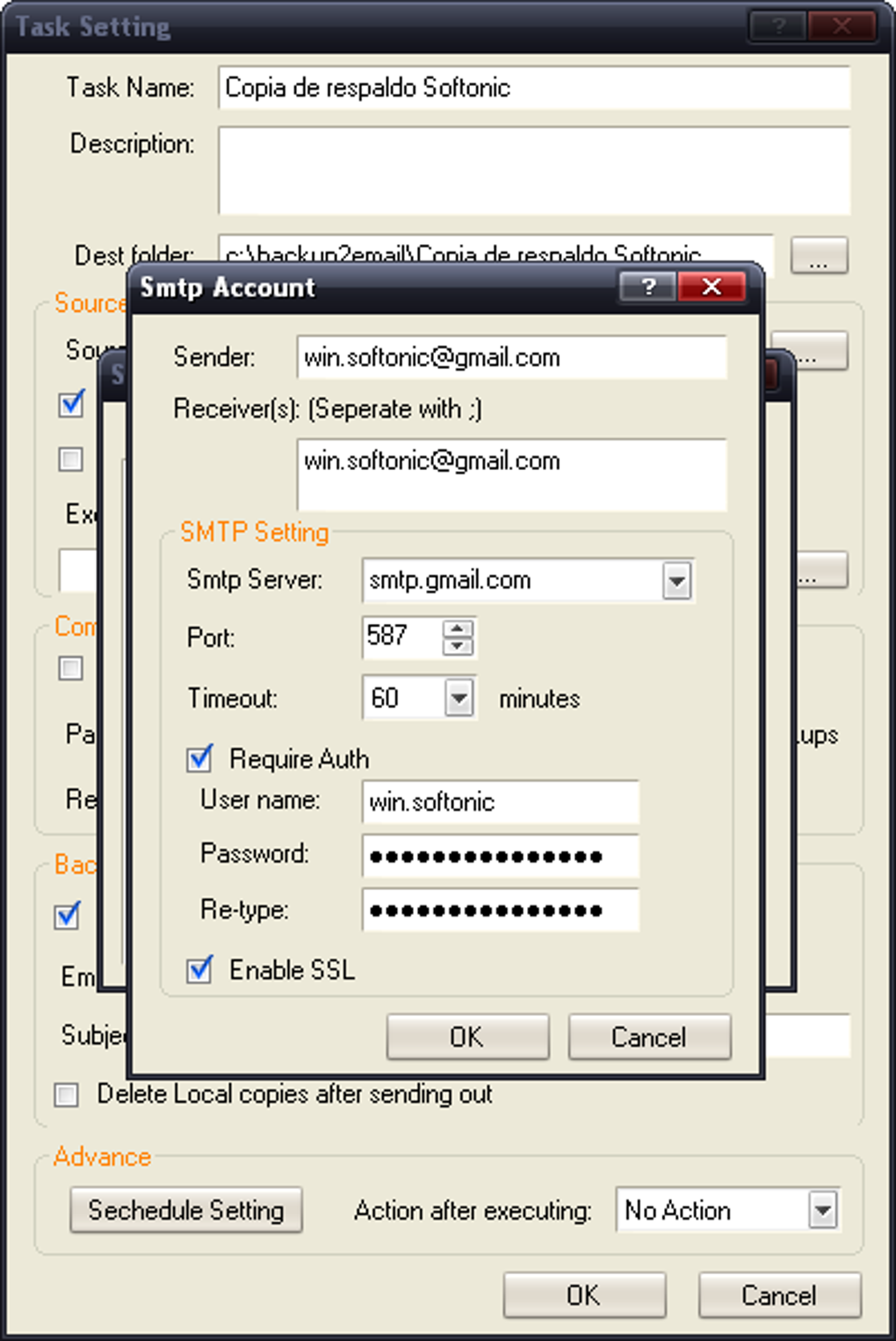
Step 2 – Link an E‑mail Account. Enter your e‑mail address, password (or app‑specific password for Gmail/2‑factor accounts), and the SMTP/IMAP server details. Backup2Email validates the credentials automatically; if the connection succeeds, you’ll see a green checkmark. For Gmail users, enabling “Allow less secure apps” or creating an OAuth token is recommended for added security.
Step 3 – Configure Backup Settings. Toggle the “Enable Backup to Email” switch, pick a compression level (Fast, Standard, or Maximum), and set the schedule. You may also define a retention policy—e.g., keep only the last 10 backups—to avoid inbox clutter.
After saving the configuration, Backup2Email creates a hidden “.bak2email” folder inside each source directory to store temporary zip files. The first backup starts immediately unless you postpone it. When the backup completes, you’ll receive an e‑mail with a subject like Bak2Email_MyDocuments_2025‑10‑26 and a .zip attachment containing the archived data.
Supported Platforms. The software runs on Windows 10, 11 (both 32‑bit and 64‑bit) and macOS 10.15 (Catalina) or newer. A portable version is also available for tech‑savvy users who prefer a “no‑install” approach, which works on any Windows system with .NET 4.7+ installed. While there is no native Android or iOS client, the e‑mail backups can be accessed from any mobile device via the standard mail app, giving you on‑the‑go recovery capabilities.
Pros, Cons, and Real‑World Performance
Pros
- Completely free core version—no subscription required.
- Leverages existing e‑mail storage, eliminating the need for additional cloud accounts.
- End‑to‑end TLS encryption protects data during transfer.
- Low resource usage; runs quietly in the system tray.
- Simple UI that’s friendly for non‑technical users.
- Bidirectional sync (backup and restore) in a single tool.
- Supports multiple e‑mail providers and accounts.
Cons
- Backup size limited by e‑mail attachment caps (typically 25 MB for Gmail).
- Storing sensitive data in an inbox may raise privacy concerns despite encryption.
- No built‑in versioning beyond the number of retained backups.
- Requires you to trust the developer with your e‑mail credentials (though they are encrypted locally).
- No native mobile app for direct backup from smartphones.
In practice, Backup2Email shines for small‑to‑medium personal collections—documents, spreadsheets, photos, and lightweight project files. Users report reliable daily backups with an average transfer time of under a minute for a 100 MB archive on a typical broadband connection. The restoration process is equally smooth: locate the backup e‑mail, download the attachment, and click “Restore” inside the app; the software automatically extracts the archive to the original folder path.
For power users with gigabytes of data, the attachment size limit becomes a bottleneck, and a traditional cloud storage service may be more appropriate. Nevertheless, as a supplemental “emergency stash” or for archiving infrequently accessed files, Backup2Email offers an elegant, zero‑cost solution.
Frequently Asked Questions
Can Backup2Email access my Gmail password directly?
The program stores your credentials in an encrypted local file and never transmits the password in plain text. For Gmail, we recommend using an app‑specific password or OAuth token to avoid exposing your main password.
What happens if my attachment exceeds the e‑mail provider’s size limit?
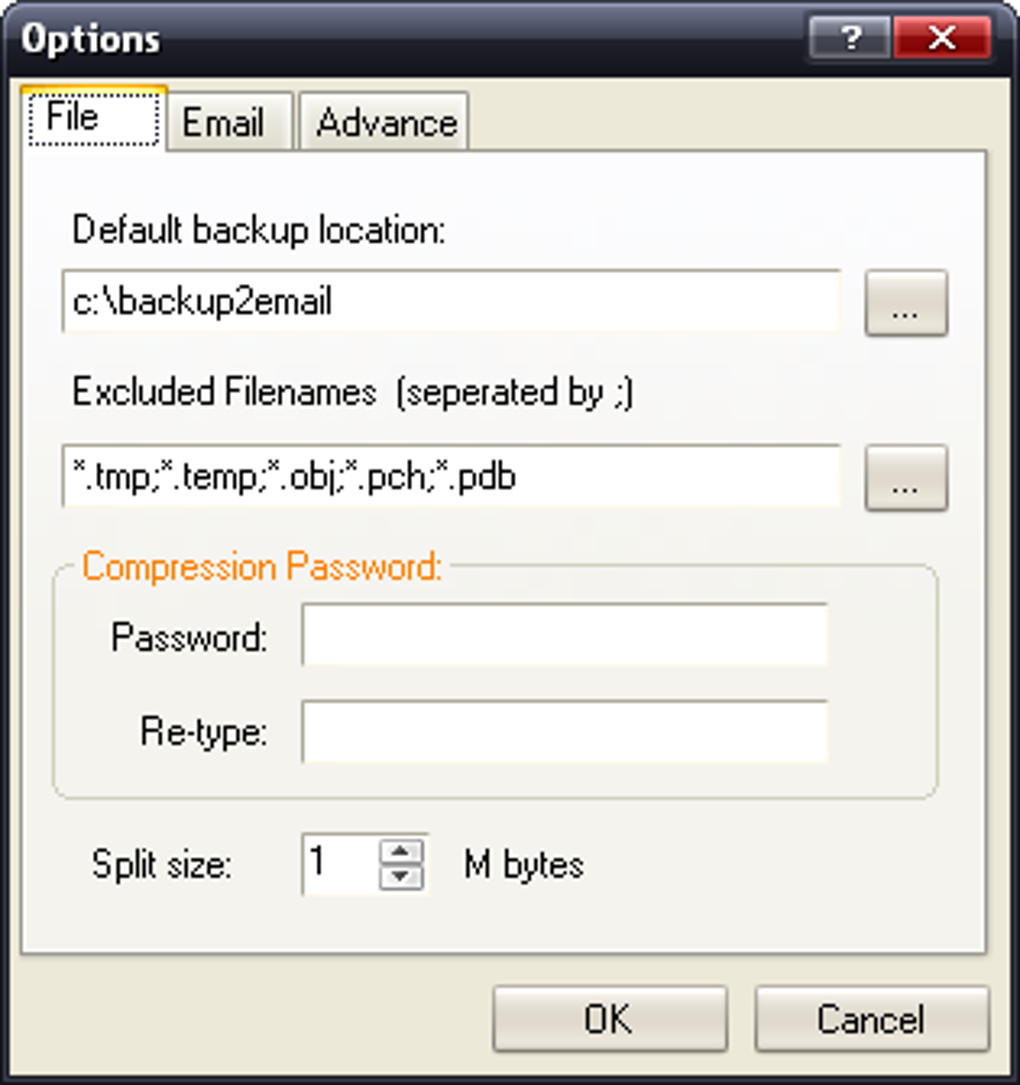
Backup2Email automatically splits large archives into multiple parts that each respect the provider’s limit (e.g., 25 MB for Gmail). Each part is sent as a separate e‑mail, and the restore function will recombine them seamlessly.
Is the data stored in my inbox encrypted?
While the transmission is TLS‑encrypted, the attachment itself is a standard ZIP file without additional encryption. If you need end‑to‑end encryption, you can enable ZIP password protection in the settings before the backup is created.
Can I schedule backups to run only when my computer is idle?
Yes. The scheduling engine includes an “Idle only” option that postpones the backup until CPU usage falls below a user‑defined threshold.
Is there a way to limit how many backup e‑mails are kept?
Under “Retention Policy”, you can set a maximum number of backups to retain (e.g., keep the latest 10). Older backup e‑mails are automatically deleted from your inbox after each successful run.
Conclusion & Call to Action
Backup2Email delivers a pragmatic, free solution for anyone who needs a quick safety net without signing up for a paid cloud plan. Its seamless integration with Gmail and other e‑mail services, combined with automatic ZIP compression and TLS‑encrypted transfers, makes it an attractive option for personal backups, small‑scale project archiving, or an emergency “off‑site” copy of critical documents. While the attachment size limit and lack of native mobile apps may steer power users toward dedicated cloud providers, the low‑resource footprint and straightforward UI give everyday users a reliable way to reclaim precious disk space.
If you’re ready to start protecting your files instantly, download Backup2Email now and follow the simple three‑step wizard to configure your first backup. Remember to enable the optional ZIP password for added privacy, and set a retention policy that matches your inbox capacity. With a few clicks, your most important files will live safely in your e‑mail—free, secure, and always within reach.
Overall Rating: 4.2 / 5
Pros: Free, easy setup, low system impact, multi‑account support.
Cons: Attachment size limits, basic encryption only, no native mobile app.







